Register a solution
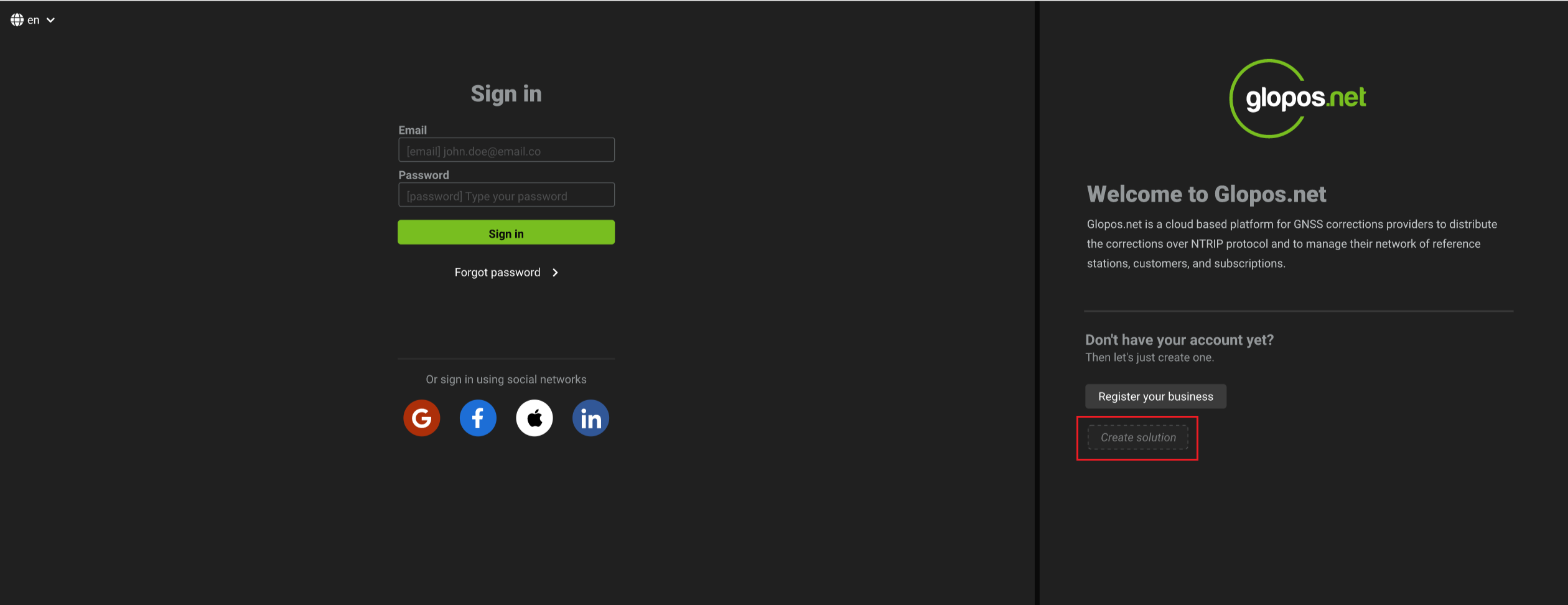
- You can begin registering a solution by clicking on the
register a solutionbutton on the button right hand corner of the webpage as shown in the screenshot below.
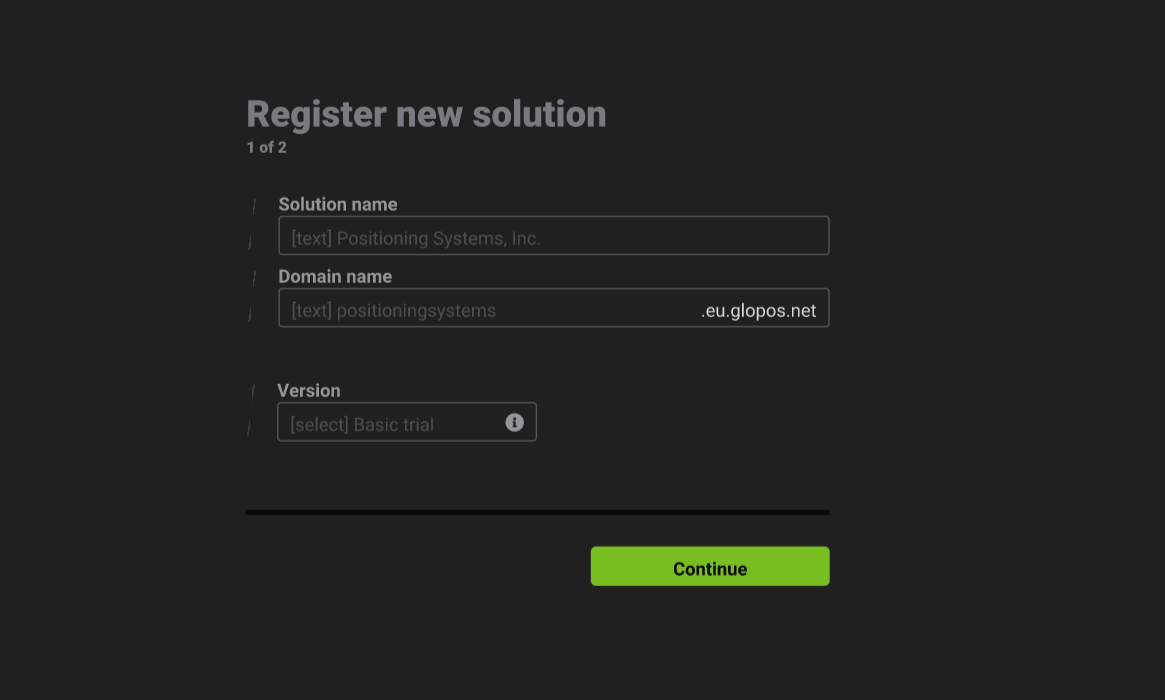
- On the next page, enter the
solution name,domain nameand theversionof the product you are interested in then click on continue.
Note:The domain name will form the full url by which you will be able to access your application. For example if you entered positioningsystems as your domain name, the generated url will be positioningsystems.eu.glopos.net
You can also choose if you want the free trial version or the paid version by selecting it in the version dropdown.
- Click
continuewhen all data has been filled to navigate to the next screen.
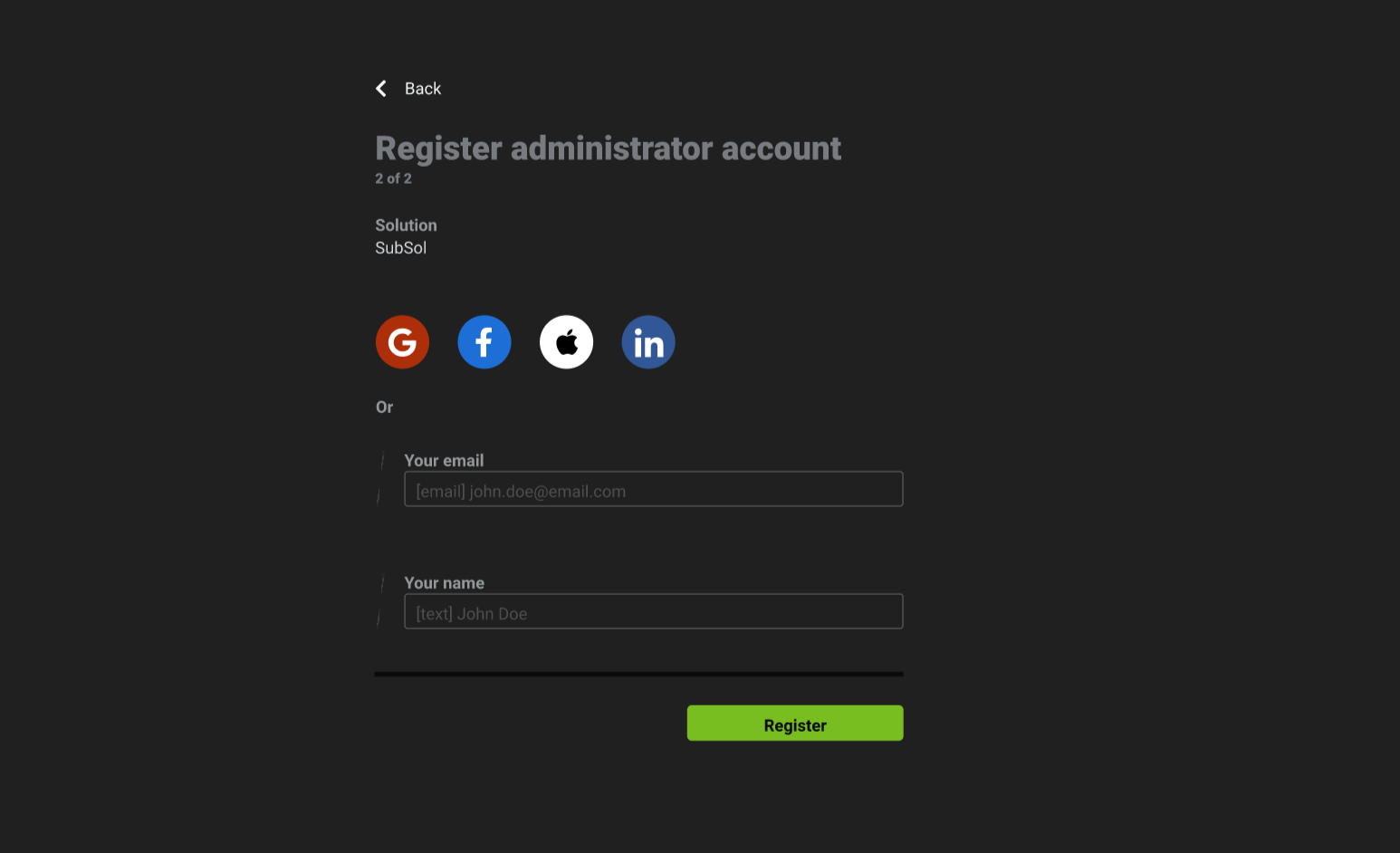
- Enter details for the administrator account for this solution then click
register
- You will be sent an email containing a link on how to set up your password. Click on the
set passwordbutton.
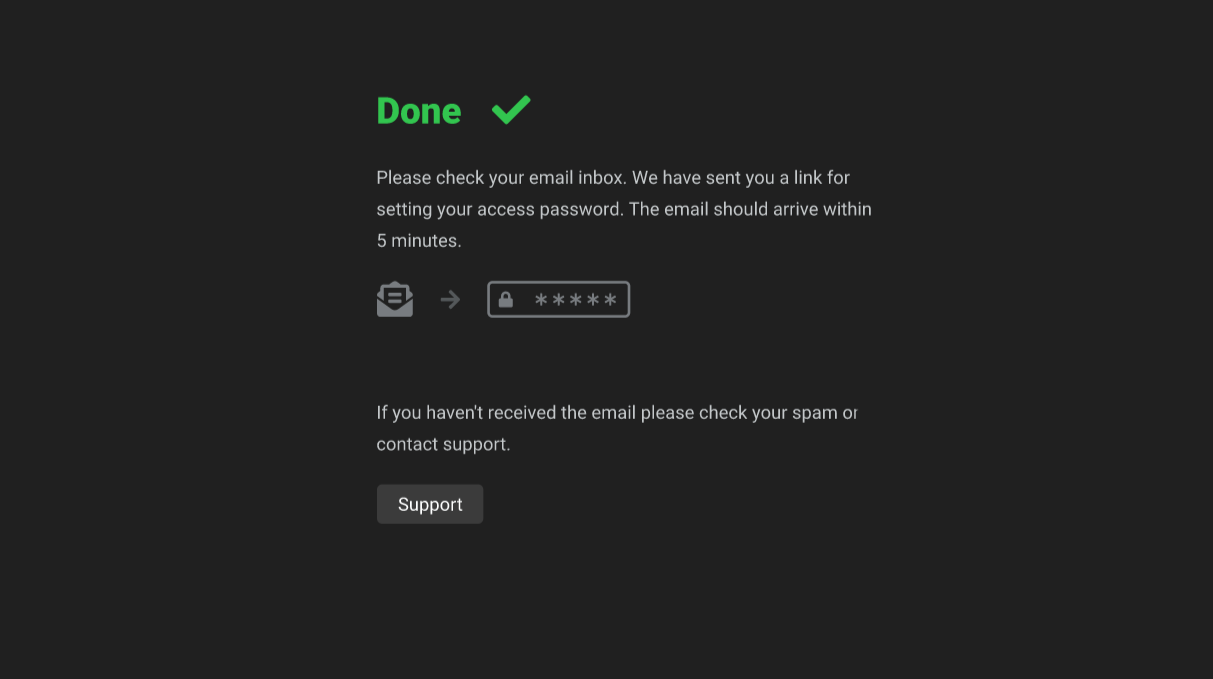
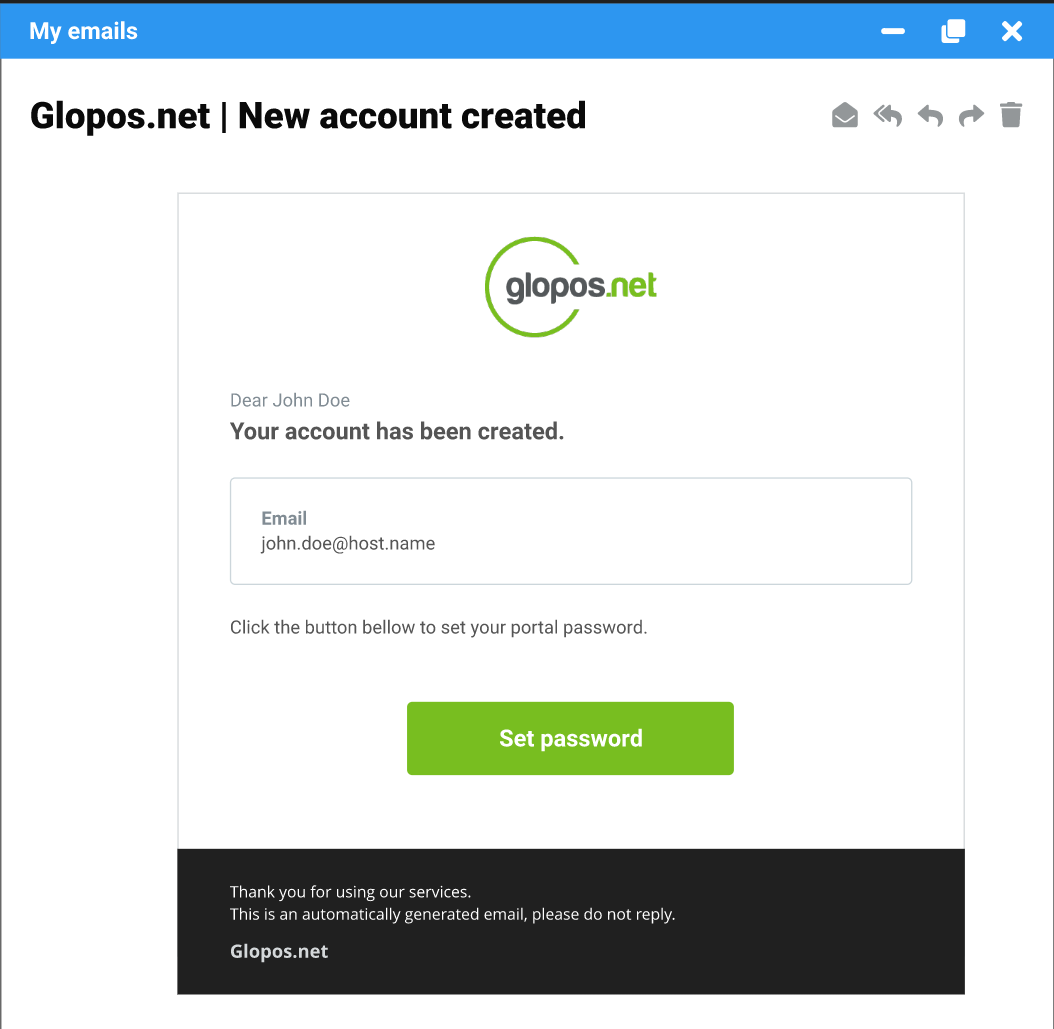
If you did not receive an email within 5 minutes, please doube check if you provided the correct email and also check your spam mailbox
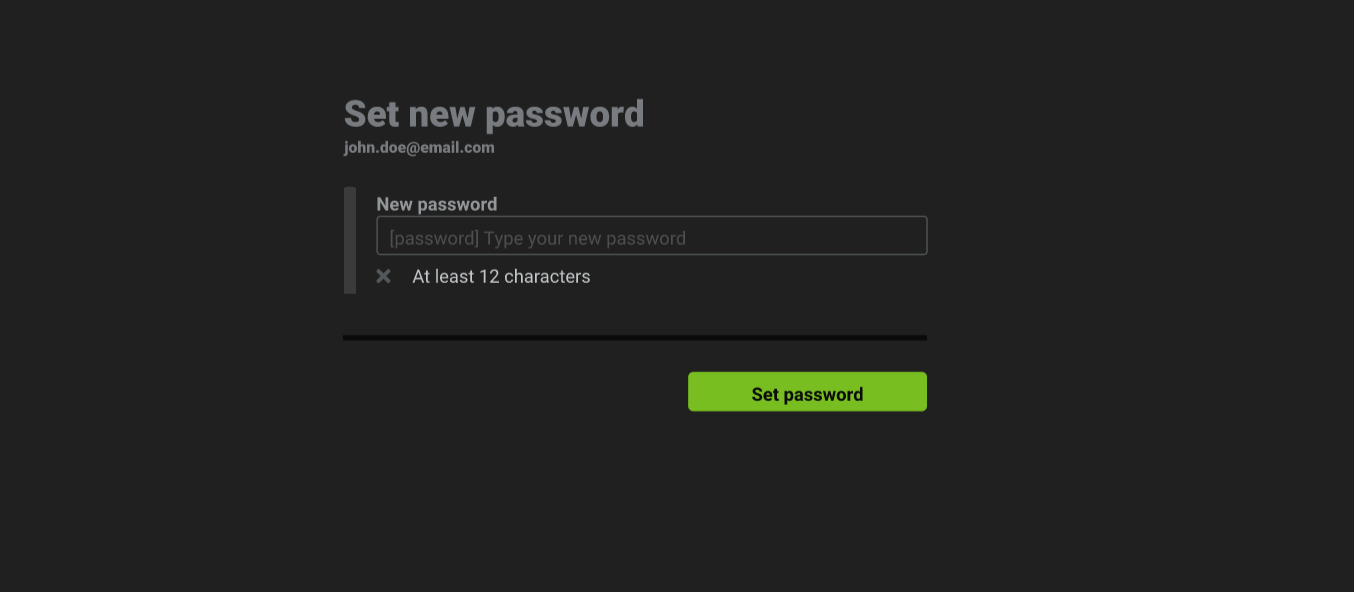
- Enter your desired password then click
set password
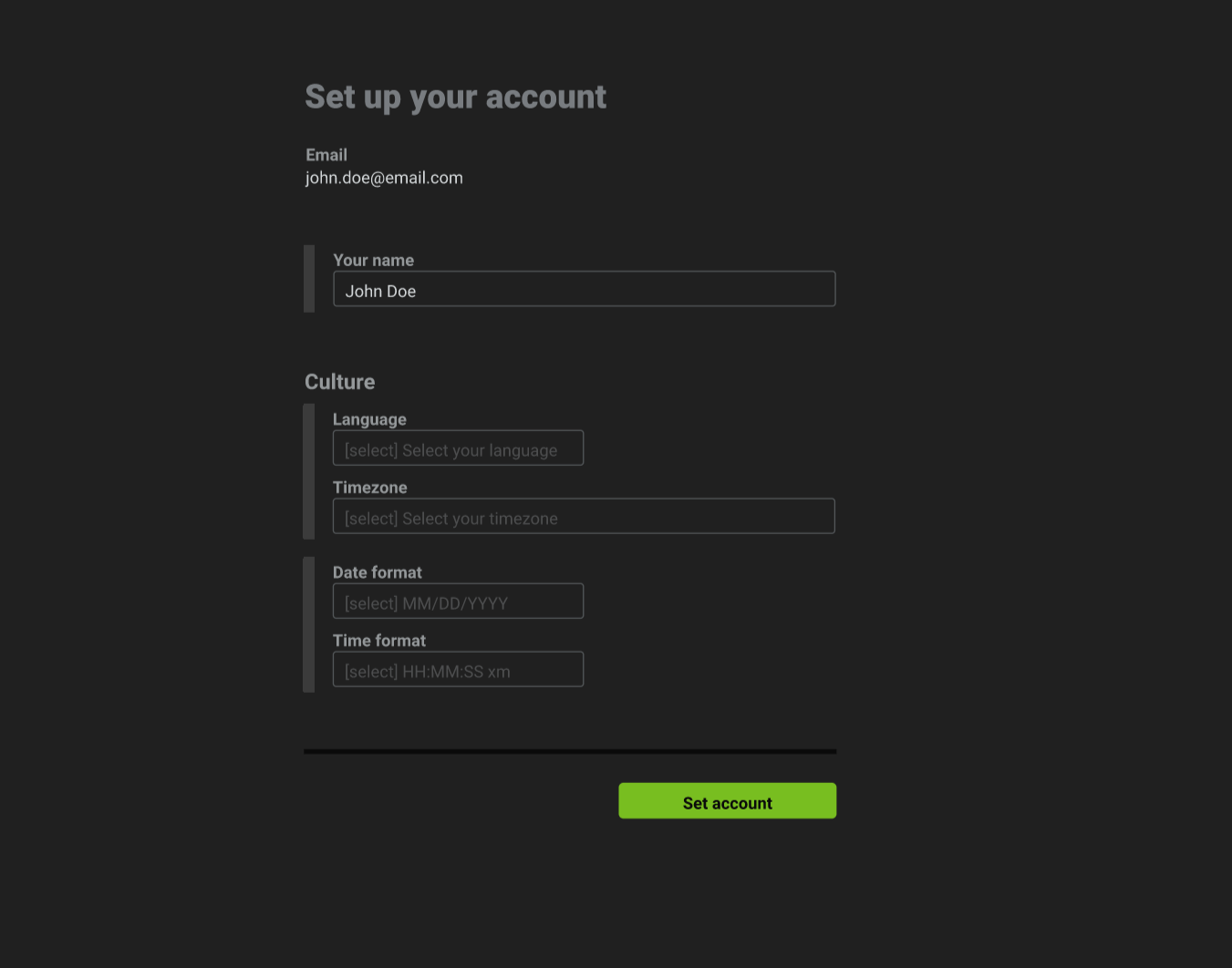
- Once your password has been set, enter your personal details and other required details then click on
set account.
The culture section allows you to customize your timezone as well as the date and time format you'd prefer. Ensure you set the correct timezone so you can get an accurate date and time information relative to your location.
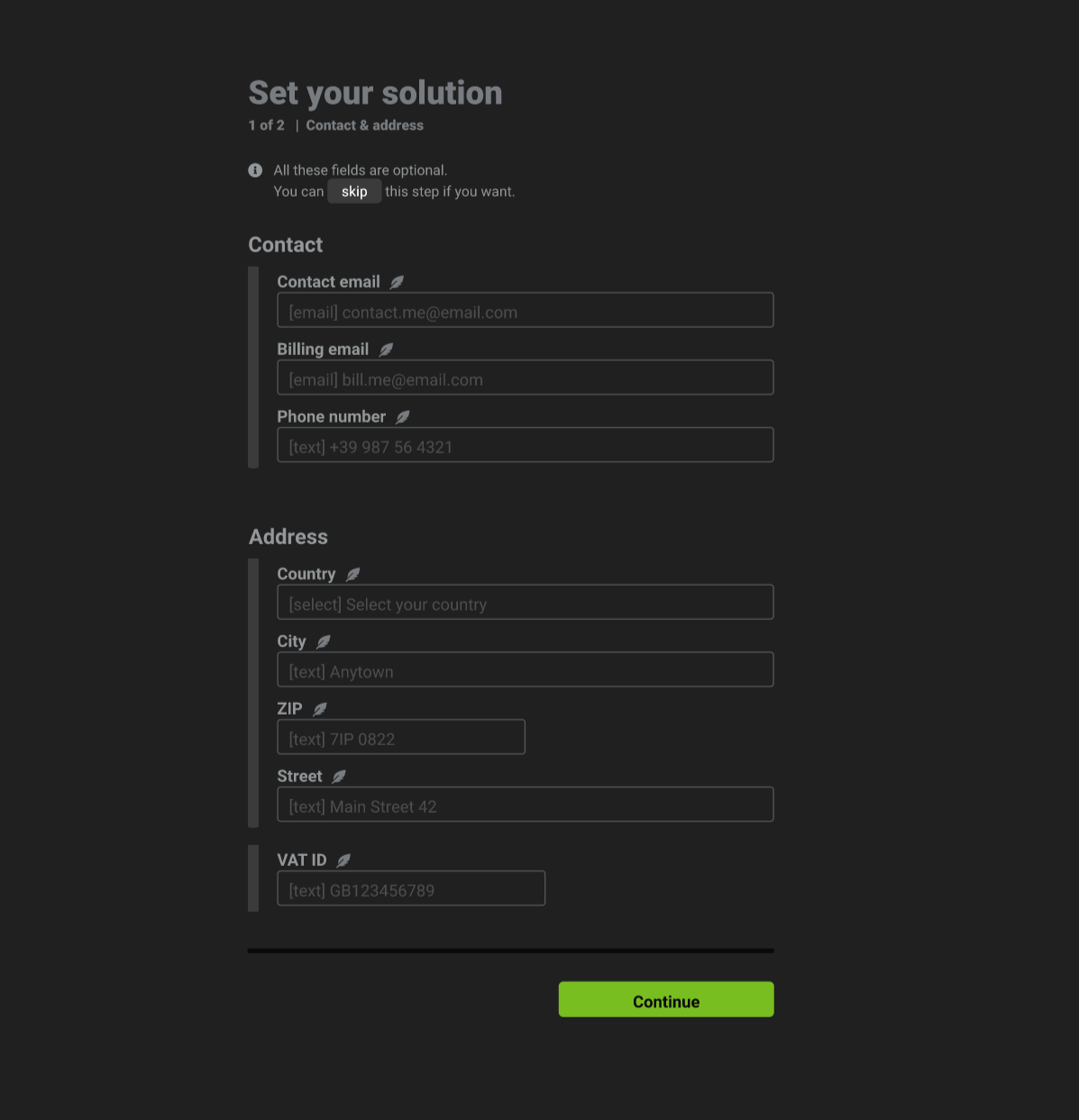
- All input in this section is optional so you can skip it otherwise enter the contact and address details then click
continue
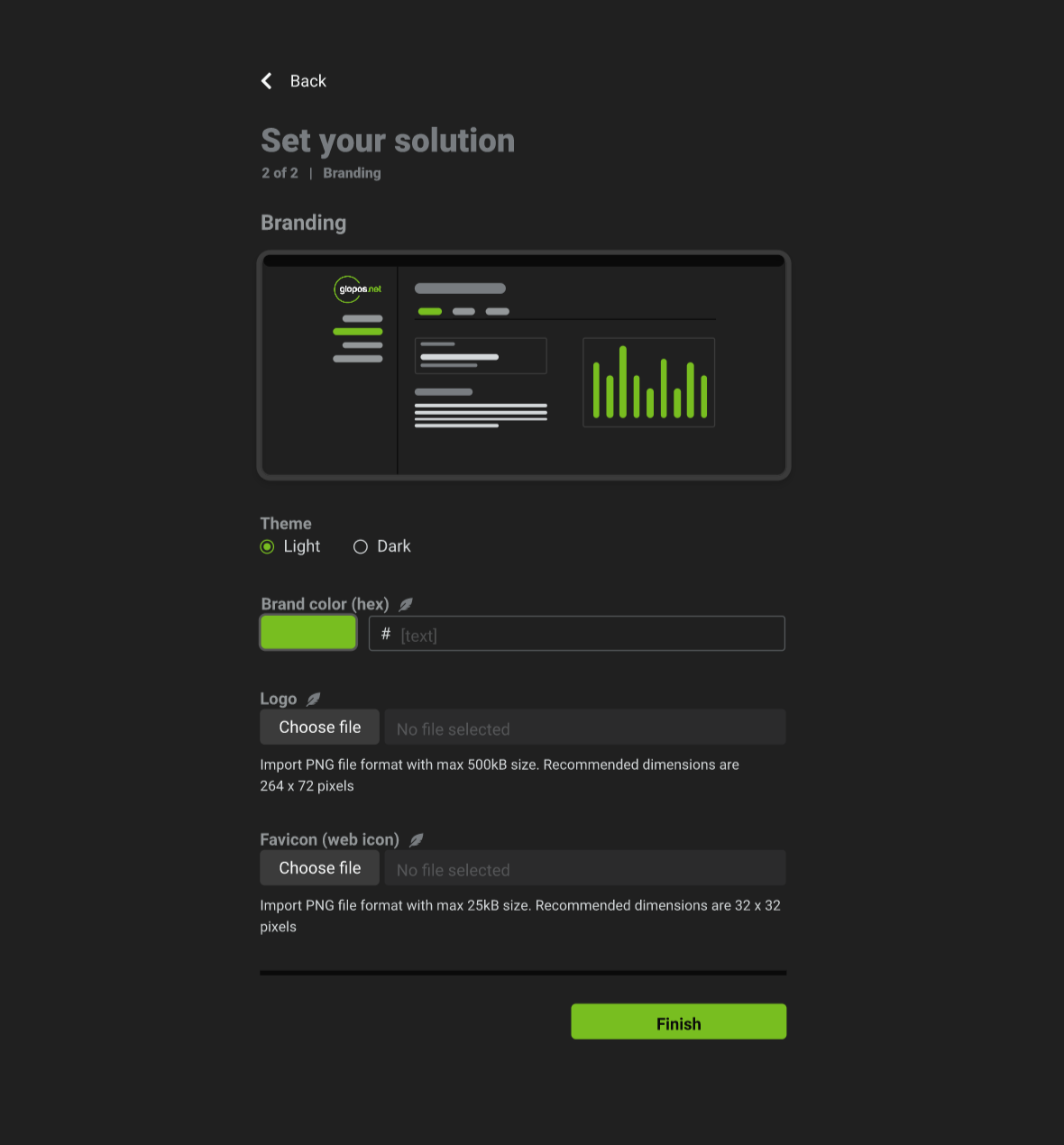
- This section allows you ti customise the solution branding. e.g. theme, logo, favicon etc. When done, click the
finishbutton
Favicon is the icon that appears on the tab of a web browser before the page title See screenshot below for example.
